Empty a room in a listing photo
Dated or bulky furniture hides the room. The Empty room tool removes all the furniture from the photo to show the space. It is also the first step before virtual staging.
Verified on 23 October 2026
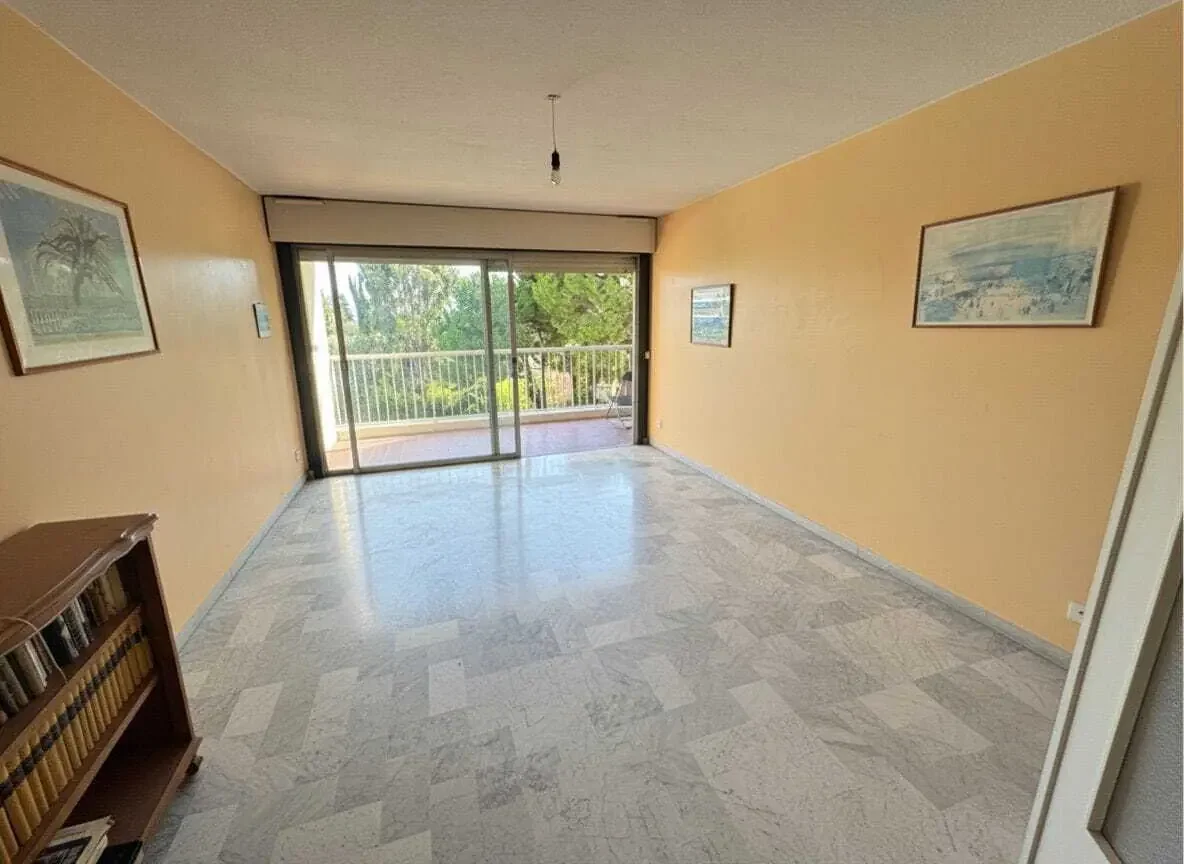
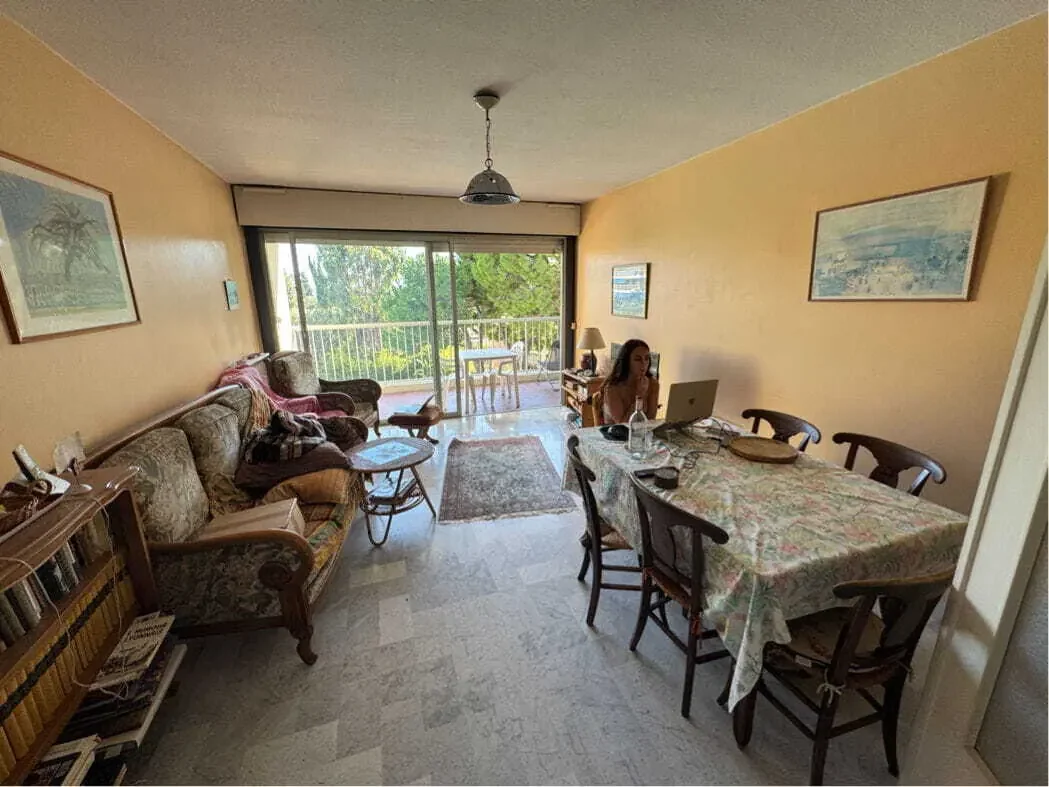
Before
After
Drag to compareDrag to compare
50%
How it works
- Open the photo and choose Empty room.
- Check the floor, walls and skirting where the furniture stood.
- Keep the photo as it is, or use it for virtual staging.
When to use it
- A property whose seller’s furniture distracts buyers.
- Showing the usable space of a crowded room.
- Preparing a photo for virtual staging in another style.
Limits
- Items sold with the property (fitted kitchen, built-in wardrobes) must stay visible: check the result.
- Behind a large piece of furniture, the tool rebuilds the wall and floor. Look closely at those areas.
- If the property is sold furnished, show the original photo too.
Frequently asked questions
Do I have to disclose an emptied room?
If the property is sold furnished, show the original photo too. Never remove anything sold with the home.
How is it different from Declutter?
Declutter removes small clutter and keeps the furniture. Empty room removes all the furniture.
Can I furnish it again afterwards?
Yes, with virtual staging, in one of the eight available styles.
What if an area looks blurred?
Take a sharper, better-lit photo, or keep the original photo for that room.
Related articles
- How to remove clutter from real estate photos
- Virtual staging for an empty apartment: method and limits
All features
Try it on your next property
Without a subscription you can create one property, upload nine photos and scan one 2D floor plan.