Improve the light and colour of a listing photo
A room photographed with a phone often comes out dark, with blown-out windows or a yellow cast. Enhancement reworks the photo’s light and colour, without adding or removing anything in the room.
Verified on 23 October 2026
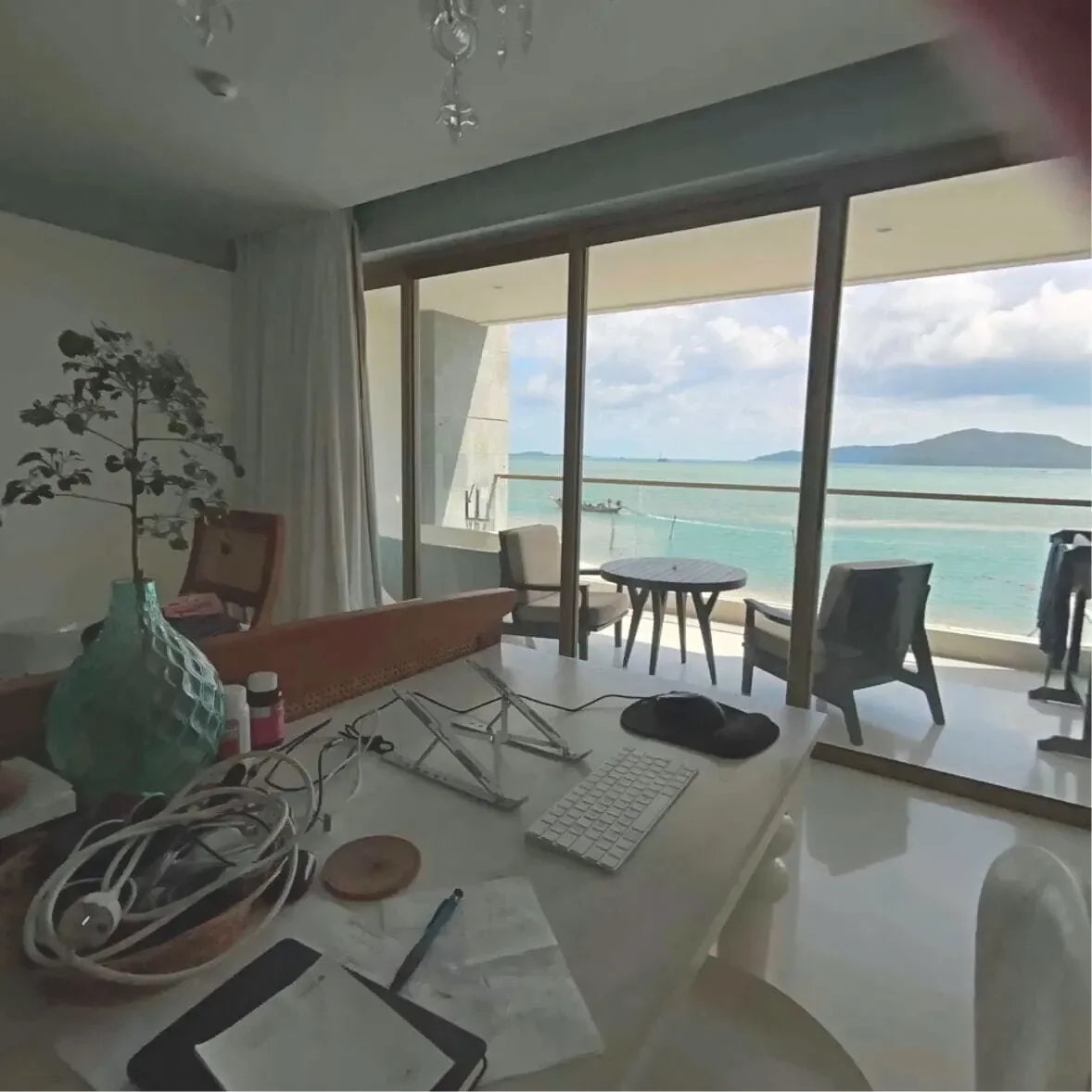

Before
After
Drag to compareDrag to compare
50%
How it works
- Turn on automatic enhancement in the settings: every imported photo is enhanced.
- If it is off, run enhancement yourself: from the AI tools menu on the web, or by selecting one or more photos on the property page on iPhone.
- Compare with the original, then keep the version you prefer.
When to use it
- Phone photos taken in a poorly lit room.
- A set of photos to make consistent before publishing.
- A first pass before other edits: decluttering, sky or virtual staging.
Limits
- A blurred or badly framed photo stays that way. Enhancement does not replace a good shot.
- Check that wall and floor colours stay true to reality.
- The tool does not merge bracketed exposures, which a photographer does in camera.
Frequently asked questions
Do I have to enhance every photo by hand?
No. With automatic enhancement turned on in the settings, every imported photo is processed. Otherwise you run it photo by photo.
Does enhancement change what is in the room?
No. It reworks light and colour. Removing objects or adding furniture takes another tool.
Can I go back to the original photo?
Yes. The original is kept: you compare both versions and keep the one you want.
Is it available on the web?
Yes. On the web as on iPhone, on import when automatic enhancement is on, or from the AI tools menu.
Related articles
All features
Try it on your next property
Without a subscription you can create one property, upload nine photos and scan one 2D floor plan.